Mocha TN5250
MochaSoftCommunication
3.523.00 Reviews
- Version
- 6.0
- Installs
- 10.00K
- Age Rating
- Everyone
Screenshots
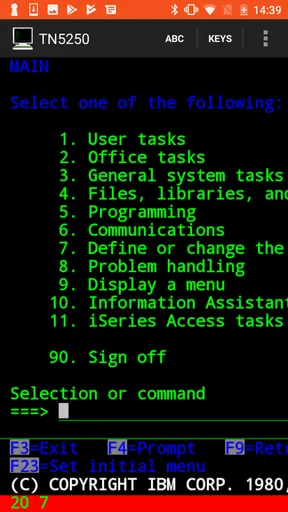
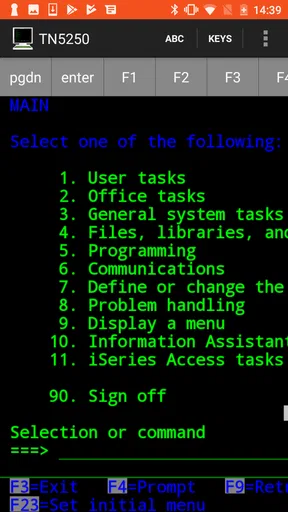
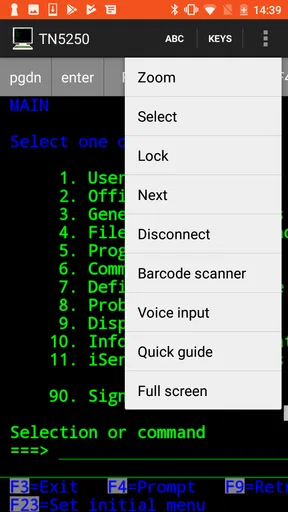
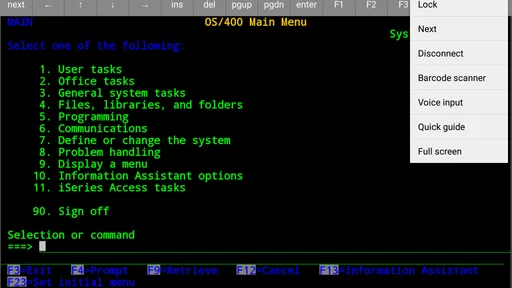
Our Review of Mocha TN5250
 Analysis by Appyee
When I look at Mocha TN5250, I see a specialized communication app rather than something designed for casual messaging. Its purpose is to let an Android device act as a TN5250 terminal for accessing AS/400 systems, so its value depends almost entirely on whether you still work with that kind of host. I would not recommend it as a general remote-access tool, but for someone who needs a phone or tablet to reach an IBM i environment, the focused design makes sense.
The first thing I would clarify is the role this app plays. It is not trying to replace a modern chat client, a cloud dashboard, or a full desktop workstation. It belongs to the older but still important world of terminal-based business systems, where a reliable text interface can be more useful than a polished graphical application. That narrow purpose is also its main strength: you are not installing a crowded communication suite when all you need is a TN5250 connection.
What using the terminal on Android feels like
In everyday use, the experience is likely to be shaped less by visual presentation and more by how comfortably you can enter commands, move through fields, and read a host session on a small screen. On a tablet, the format should feel more natural because there is more room for the terminal display and the on-screen keyboard. On a phone, I would expect the same work to demand more careful scrolling, tapping, and cursor placement.
That difference matters in a realistic scenario. Imagine a technician away from the office who needs to check an inventory record or confirm a transaction on an AS/400 system. A dedicated TN5250 client can be more practical than waiting for access to a desktop, provided the user already understands the host application and has the necessary connection details. The app does not make the underlying business software simpler; it gives you a mobile doorway into it.
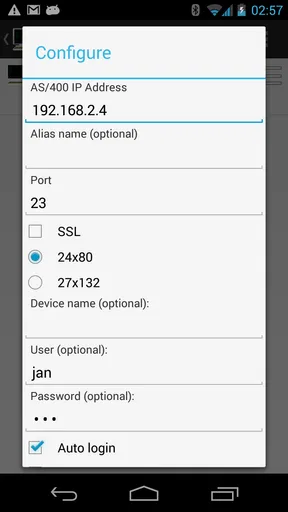
I would approach the first session with a short checklist. Keep the host address and login information available, confirm that the account is permitted to connect remotely, and test the workflow on a non-urgent task before depending on it during an outage. Terminal applications often feel straightforward once connected, but the difficult part can be the surrounding network and account setup rather than the app itself.
One useful way to judge it is by the number of actions you perform per session. If you only review a few records, a phone may be perfectly adequate. If you enter long forms, repeat function-key commands, or work continuously for hours, a tablet or external keyboard becomes much more attractive. The best mobile terminal setup is not necessarily the smallest one; it is the one that reduces input mistakes.
Speed depends on the whole connection
For a TN5250 client, perceived speed is not just about the app. The Android device, local network, route to the host, and response time of the AS/400 all contribute to how immediate the session feels. A simple terminal screen can appear very fast when the connection is healthy, yet the same screen may feel stalled when the host or network is busy.
I would therefore avoid judging performance from screen animation or visual effects. This type of app has a relatively focused job, and the important question is whether keystrokes and screen updates arrive predictably. When the session responds promptly, the minimal interface works in its favor because there is little visual clutter between the user and the host application.
There is also a practical trade-off between speed and caution. Rapid navigation is helpful when checking several records, but fast repeated input can be risky in a legacy workflow where an overlooked field or command may trigger an unwanted action. I would use the mobile client for quick checks and controlled updates first, then reserve larger, more comfortable hardware for high-volume data entry.
Users deciding between this and a browser-based remote desktop should think about what they actually need. A remote desktop can expose a wider range of software, but it usually adds more layers between the device and the AS/400 session. A dedicated TN5250 client is the more direct choice when the host connection is the only task. If your work requires Windows tools, graphics, file management, or several unrelated applications at once, a remote-desktop solution may be more suitable despite its extra overhead.
Heavy-use moments reveal the real trade-offs
The most demanding situation is not necessarily a long download or a visually complex screen. It is a sustained work session in which the user repeatedly changes screens, enters data, and switches between the terminal and other Android apps. That is where the limitations of a small touch device become more noticeable than the raw capability of the client.
For occasional access, I would keep the workflow deliberately narrow: connect, complete the specific lookup or update, verify the result, and close the session cleanly. This reduces the chance of leaving a host session open while the phone is put away or another app takes over. It also makes the app easier to use as an emergency or field tool rather than pretending the phone is a full office replacement.
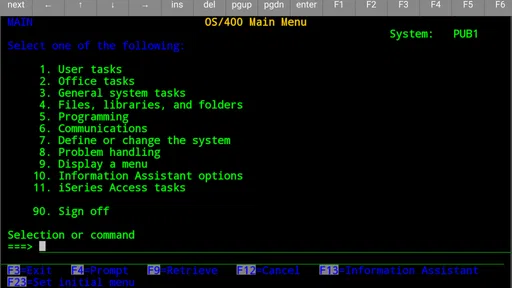
A less obvious consideration is screen orientation. A terminal layout that is readable in portrait mode may become cramped when the keyboard appears, while landscape mode can improve the visible work area but make one-handed use awkward. I would test both orientations with the actual host screens, not just the login page. The right choice may vary between reading records and entering information.
Another practical tip is to avoid treating the Android back gesture as a universal way to leave the session. In a terminal environment, navigation commands and host function keys have their own meaning. I would pause before using system navigation, especially after entering data, and make sure the host screen has accepted the action. That habit is more important than squeezing a little extra speed from the workflow.
For teams, the app is best viewed as a personal access tool rather than a shared operational platform. Each user should understand the organization’s access rules and avoid saving sensitive connection details casually on a device that other people use. The app’s communication category does not turn it into a managed enterprise console, so the surrounding security and device practices still matter.
Reliability means recovering without losing your place
With a terminal client, reliability is measured by more than whether it opens. I care about whether a session remains understandable when the network changes, the device locks, or Android moves the app into the background. A mobile connection can be interrupted by ordinary events such as entering a different building, switching networks, or receiving a call.
I would not assume that an interrupted session can always continue exactly where it stopped. Before relying on it for a sensitive update, I would learn the host application’s behavior after reconnecting: whether it returns to the same screen, repeats the last action, or requires the user to start again. That is a workflow question involving the AS/400 application as well as the client, but it directly affects how safely the app can be used away from a desk.
A sensible recovery routine is to note the record or menu location before attempting a reconnect, then verify the last completed action on the host. If a form may have been submitted before the connection dropped, do not blindly submit it again. Check the record first. This is one of the most important habits for mobile terminal use because a duplicate transaction can be more troublesome than a brief interruption.
I also prefer short, intentional sessions over leaving the connection open all day. That approach reduces uncertainty when the phone changes networks or the operating system reclaims background resources. It is not a criticism unique to this app; it is a realistic limitation of using any mobile device as a window into a business host.
The developer, MochaSoft, has kept this product focused over a long period. It was released on October 14, 2010, and the current version is 6.0. That history tells me the app is aimed at a mature technical need rather than a rapidly changing social platform. I would still test it against the exact host workflow before making it part of a critical support routine, because compatibility expectations in legacy environments can be very specific.
Device limits matter more than the installation itself
The app supports Android devices running version 5.1 or later, which covers a broad range of hardware. Compatibility with the operating system is only the starting point, though. A device can meet the software requirement and still be uncomfortable for terminal work because of its screen size, keyboard behavior, battery condition, or unreliable network connection.
On a compact phone, the biggest constraint is input. Terminal screens often assume a keyboard with clearly available function keys and directional controls, while a touch keyboard may hide or rearrange those controls. If your host workflow depends heavily on special keys, I would test those actions early rather than discovering the problem after purchasing the app.
A larger screen helps with reading dense records, but it does not automatically solve every issue. Touch accuracy, screen glare, and the position of the device during field work can still affect productivity. My preferred setup would be a tablet used in landscape orientation for regular mobile work, with a phone kept for quick status checks when carrying a larger device is impractical.
Resource demands are difficult to judge from the terminal display alone, but the app’s focused purpose should make it a fundamentally different workload from a graphics-heavy application. I would not choose a device solely because it is powerful. A stable network, a responsive keyboard, and a screen that keeps the host text legible are more important to this particular task than top-end processing performance.
There is also a cost decision. At $28.99, this is not an impulse download for someone who is merely curious about terminal emulation. The price makes more sense when the app saves a real trip to a workstation or gives a support worker access to an existing AS/400 workflow. If you only need occasional remote access and your organization already offers another approved method, that alternative may be the better value.
Who should use it, and who should skip it
I would recommend this app to an employee, technician, or administrator who already works with an AS/400 host and wants a direct Android access option. It is especially appealing when the required task is text-based and well understood: checking a status, reviewing a record, confirming a queue, or completing a small number of controlled updates while away from a desk.
I would skip it if you are looking for a general communication app, a modern business dashboard, or a way to access arbitrary desktop software. The Everyone age rating describes its store classification, but that does not mean it is suitable for every user. Without an AS/400 environment and the right account access, the app has little practical purpose.
I would also be cautious about making it the sole tool for intensive data entry. A desktop terminal or approved workstation will usually offer a better keyboard, a larger display, and a more predictable long-session setup. The Android version is most convincing as a focused companion: useful when mobility matters, less compelling when mobility is not part of the problem.
The app has an average rating of 3.5 from around 94 ratings, with around 23 written reviews. I read that as a sign to set realistic expectations rather than as an automatic rejection. Specialized software often receives feedback from users with very different host configurations and device habits. Your own test should concentrate on the exact screens and commands you use, not just on whether the login screen appears.
It has passed 10K installs, which is modest compared with mass-market communication tools but understandable for software built around a specific enterprise protocol. That smaller audience reinforces my view that this is a purpose-built utility. Its success for you will depend on fit, not popularity.
My performance verdict after weighing the trade-offs
My overall opinion is positive but narrow. Mocha TN5250 makes sense when the problem is clearly defined: reach an AS/400 terminal from an Android device without carrying a full computer. Its focused nature can make the session feel direct, and it avoids asking a terminal user to navigate a large collection of unrelated features.
I would judge its speed through actual host response, its stability through reconnect testing, and its comfort through a real data-entry task. Those three checks tell you more than a quick launch. Try a lookup, a controlled update, a screen rotation, a brief background switch, and a recovery after a network change. If those steps match your normal work, the purchase becomes much easier to justify.
The strongest non-obvious advantage is the ability to create a compact mobile workflow around a legacy system: use the phone for a quick verification, the tablet for a longer field session, and the desktop for heavy administration. The main weakness is the same arrangement viewed from another angle: the app does not modernize the host application, so every awkward terminal convention still belongs to the workflow.
For that reason, I would recommend it to someone who knows exactly why they need TN5250 access, not to someone browsing for a versatile remote-work app. The age rating is Everyone, and Android support begins at 5.1, but the real requirement is professional context. If your daily work still runs through an AS/400 and mobile access would save time, this is a credible specialized option from MochaSoft. If you need broad desktop control or frequent, comfortable typing, I would choose a larger-screen or more general remote-access solution instead.
Verdict
Strengths of Mocha TN5250
- Reliable IBM iSeries and AS/400 terminal emulation
- Supports secure SSH connections for remote access
- Customizable keyboard improves data-entry efficiency
- Works well on phones and tablets
- Useful for administrators needing access on the go
Limitations of Mocha TN5250
- Interface feels dated compared with modern productivity apps
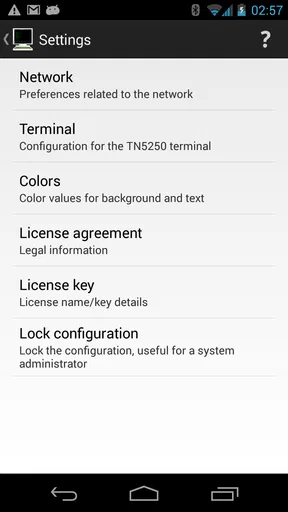
- Some advanced settings may be confusing for beginners
- Small screens can make legacy interfaces difficult to navigate
- Performance depends heavily on connection quality
- May be unnecessary for users without IBM host access
Similar Picks in This Category
View All
Google Messages
Google LLC4.6

Gmail
Google LLC4.1

Google Meet
Google LLC4.4

Google Chrome
Google LLC4.1

WhatsApp Messenger
WhatsApp LLC4.6

Carrier Services
Google LLC4.2
Frequently Asked Questions
What is Mocha TN5250 used for?
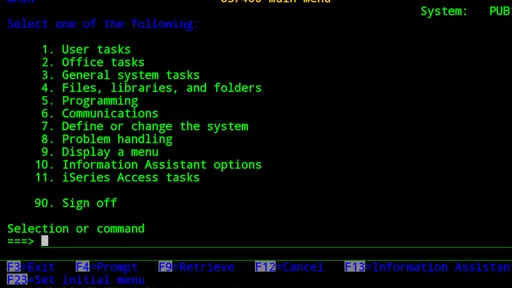
Mocha TN5250 is a mobile terminal-emulation app designed to connect Android or iOS devices to IBM i, AS/400, and System i computers. It emulates a 5250 terminal, allowing users to access text-based business applications, menus, databases, and workflows remotely. It is mainly intended for professionals who need portable access to legacy enterprise systems rather than modern graphical applications.
Does Mocha TN5250 require an IBM i or AS/400 server?
Yes. Mocha TN5250 is a client application, so it does not provide business software or an IBM i environment by itself. You need access to a compatible IBM i, AS/400, or System i host configured to accept TN5250 connections. Before downloading, confirm the server address, port, login credentials, and any network or VPN requirements with your company’s system administrator.
Can I use Mocha TN5250 over the internet or only on a local network?
The app can generally connect through a local Wi-Fi network, mobile data, or the internet, provided the host is reachable and the connection is properly configured. In many business environments, remote access requires a VPN or another secure gateway instead of exposing the IBM i server directly. Performance depends on network quality, server response time, and your organization’s security policies.
Is Mocha TN5250 easy to use on a phone or tablet?
The app provides a touch-based interface for interacting with traditional 5250 screens, but the experience may require some adjustment if you are used to a physical keyboard. Function keys, navigation commands, text entry, and screen controls are adapted for mobile use. A tablet usually offers more comfortable viewing, while a phone can still be practical for quick checks or occasional remote tasks.
Is Mocha TN5250 suitable for secure business access?
Mocha TN5250 may be useful for business access, but security depends on how the connection is deployed and managed. Users should verify whether their environment supports appropriate encryption, VPN access, strong passwords, account controls, and other company requirements. Avoid entering sensitive credentials on unsecured networks, and consult an administrator before using the app to access production systems or confidential data.
